One.Walmart Login Schedule | Access Your Walmart Work Schedule Online
One.Walmart Login Schedule Guide
If you work at Walmart, One.Walmart.com is the employee portal that holds everything related to your employment — your schedule, pay stubs, W-2 forms, PTO balance, benefits, and HR tools. It’s the system formerly known as WalmartOne and Walmart OneWire, all consolidated into one login at one.walmart.com.
The biggest source of confusion for Walmart associates isn’t the portal itself — it’s the wmlink/2step verification requirement that blocks home access until it’s set up inside the store. This guide covers that process in full detail, along with every other login issue, app question, and schedule access method that Walmart associates actually search for.
Looking for your Walmart pay stub specifically? See our dedicated Walmart pay stub guide. Need your W-2? See the Walmart W-2 form guide.
Jump to section:
What is One.Walmart or Walmart One login schedule?
OneWalmart (one.walmart.com) is Walmart’s official employee self-service portal. It gives all active Walmart and Sam’s Club associates secure online access to their employment information — schedules, paychecks, tax documents, time off, benefits, and company communications – from any internet-connected device.
The portal has gone through several name changes over the years, which causes ongoing confusion for associates searching for it online:
- WalmartOne: the original name, active for years before the rebrand
- Walmart OneWire / Walmart Wire: a transitional name used when Walmart tried to merge its intranet and employee portal
- OneWalmart / One.Walmart.com: the current official name and URL since 2019
All of these names refer to the same system. If you’re searching for “WalmartOne login” or “Walmart Wire,” you’re looking for one.walmart.com. Any old bookmarks to walmartone.com or walmart wire now redirect to the same place.
OneWalmart is available to all active US Walmart and Sam’s Club associates. It is not publicly accessible so you must have an active Walmart Identification Number (WIN) and be an active employee to log in.
What You Need to Log Into OneWalmart
- Your Walmart User ID (WIN number): your 7–9 digit Walmart Identification Number, assigned at hiring. This is your login username across all Walmart systems.
- Your password: set during onboarding or at your first in-store login. Same password across all Walmart associate systems.
- wmlink/2step verification enabled: mandatory for logging in from any personal device or location outside the store network. Must be set up at the store first. See the full setup guide below.
- A stable internet connection: mobile data or home Wi-Fi both work once 2-step is enabled. Avoid public Wi-Fi when accessing payroll data.
New associate? Your WIN number is on your hire paperwork and offer letter. Your account is active from your first day of employment. To access OneWalmart from home, you still need to set up wmlink/2step verification at the store first — this is a one-time setup that takes about 5 minutes.
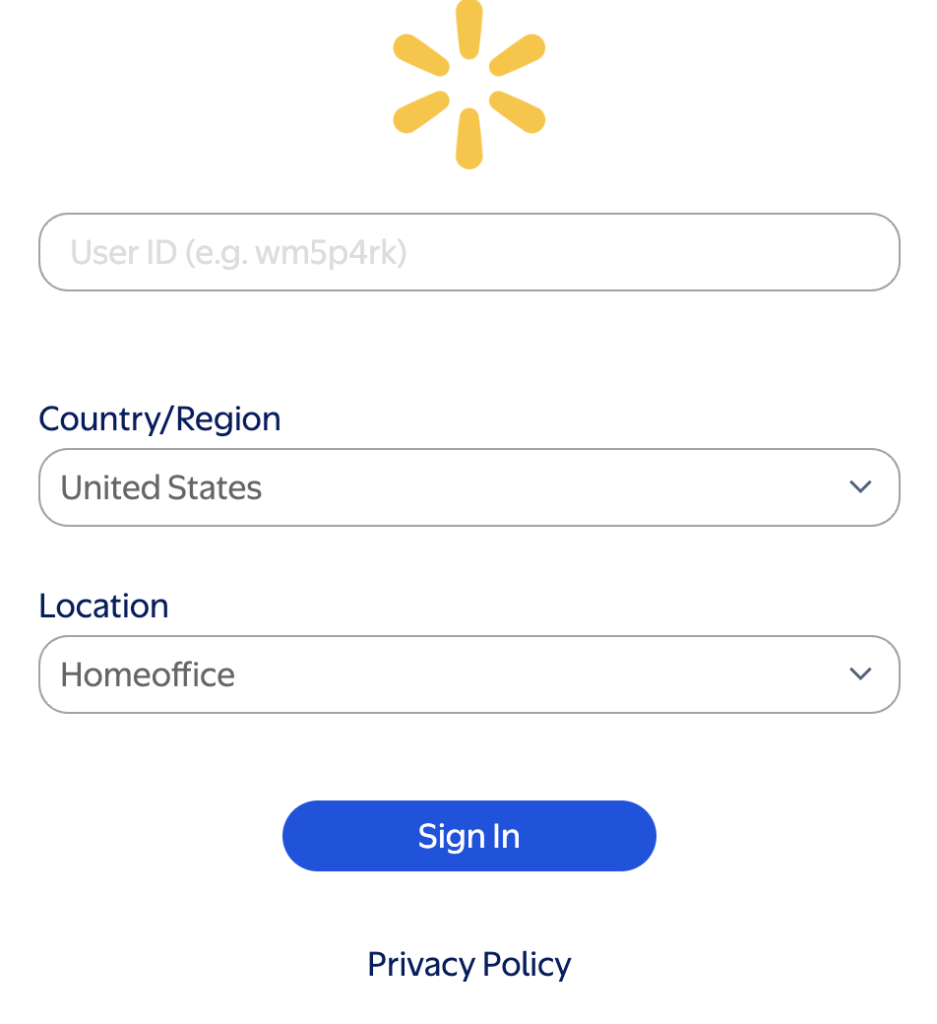
How to Log Into One.Walmart.com — Step by Step
- Open your browser and go to one.walmart.com
Type the URL directly into your browser address bar — do not search for it on Google. Dozens of unofficial sites using names like “walmartone.work,” “wireone.pro,” or “wmlink2step.com” rank in search results. The official Walmart portal URL is always one.walmart.com — nothing else. Bookmark it after your first confirmed login. - Click “Sign In” in the top right corner
The OneWalmart homepage has a Sign In button in the upper right. Click it to be taken to the login screen. - Enter your Walmart User ID (WIN number)
Your WIN is the 7–9 digit number that serves as your Walmart employee username. Enter it exactly — no dashes, no spaces. Click Continue. - Enter your password
Type your Walmart password. This is the same password you use on the in-store computers, the Me@Walmart app, and the Walmart Wire. Click Sign In. - Complete two-step verification
If you’re logging in from home or a personal device, Walmart will prompt you for a second verification code. Enter the 6-digit code sent to your registered phone number via text message, voice call, or the VIP Access app. This step only appears on personal devices — store computers on the Walmart network skip it. If you haven’t set up 2-step yet, see the full guide below. - Navigate to your destination
Once inside, use the main menu to go to Schedule, Pay Stubs, Benefits, Time Off, or any other section you need. Bookmark your most-used sections directly for faster future access.
wmlink/2step Verification — The Complete Setup Guide
Why wmlink/2step exists
Your OneWalmart account contains sensitive information — pay stubs, tax documents, banking details for direct deposit, and personal HR records. Two-step verification ensures that even if someone knows your password, they cannot access your account without physically having your registered phone. Walmart requires every associate to enable it before accessing the portal from outside the store network.What you need before you start
- You must be physically inside your Walmart store, on the clock, and connected to the Walmart network
- Your Walmart User ID and password
- Your personal phone (the one you want to receive verification codes on)
- Optional: the VIP Access app by Broadcom/Symantec downloaded on your phone (recommended for associates without reliable SMS)
How to set up wmlink/2step — step by step
- At a store computer, open the browser and type
wmlink/2stepin the address bar and press Enter This only works on the store’s internal Walmart network — it will not work from home or on mobile data. It takes you directly to the Symantec VIP two-step enrollment portal. - Enter your Walmart User ID and password when prompted Use your standard store login credentials — same ones for everything.
- Choose your verification method
You have three options:
- Text message (SMS) — recommended. Enter your personal mobile number and Walmart texts you a 6-digit code each time you log in from home.
- Voice call — a phone call reads you the code. Good if you have a landline or unreliable SMS.
- VIP Access app (Symantec) — generates codes directly on your phone without needing a signal. Best for areas with poor cell coverage or if you switch phone numbers frequently.
- Verify your phone with the test code Walmart sends a test code to your chosen method. Enter it to confirm setup.
- Enrollment complete — you can now log in from home Once enrolled, go to one.walmart.com from any device, enter your WIN and password, then enter the verification code when prompted. Access is immediate.
Got a new phone? This is the most common cause of 2-step verification breaking after it was working. When you get a new phone, your wmlink/2step enrollment is tied to your old phone’s credentials and breaks silently — Walmart gives no warning. Return to a store workstation, delete the old device registration, and re-enroll with your new phone. Takes 5 minutes and restores home access immediately.
wmlink/2step not working — quick fixes
- Code not arriving by text: Check your phone signal. Request a new code — codes expire within 60 seconds. Try switching to a voice call instead.
- Page says “wmlink/2step is not recognized”: You’re trying to access it from outside the store network. This URL only works on Walmart’s internal network from a store or club computer.
- Got a new phone and locked out: Visit the store, re-enroll on a store workstation with your new phone. See above.
- VIP Access app showing wrong code: Check that your phone’s date and time are set to automatic — the VIP app generates time-based codes and incorrect device time causes mismatches.
- Still can’t access after enrollment: Call the Walmart IT help desk at 1-800-421-1362 (Option 3 for technical support). They can reset your 2-step enrollment remotely.
One.Walmart Direct Schedule Links
Some associates prefer accessing schedules directly.
- Desktop schedule view
- Mobile schedule view
These links require active login and verification.
How to Check Your Walmart Work Schedule on OneWalmart
After logging into one.walmart.com, checking your schedule takes two clicks:
- From the main dashboard, click Schedule or My Schedule in the navigation menu
- Your current week’s schedule displays. Use the date navigation arrows to see future weeks or review past shifts
- You can view by day, week, or month. Most Walmart stores post schedules up to 3 weeks in advance
- Approved time off, upcoming PTO, and shift changes are reflected in the schedule view
Direct schedule links: Some associates prefer to bookmark direct schedule access links:
- Desktop schedule view: login.walmartone.com/onlineschedule/schedule/FullSchedule.aspx
- Mobile schedule view: login.walmartone.com/onlineschedule/mobile/schedule/FullSchedule.aspx
Both links require active login with wmlink/2step verification completed.
Schedule not showing? If your schedule is blank or missing shifts, your manager may not have posted the next schedule cycle yet, or a scheduling system sync is in progress. Check back the next day and confirm with your department manager. If you’re a new associate, it can take up to one full week for your schedule to appear in the system.
Walmart Clock Time Policy
As used across most Walmart stores through OneWalmart and in store time clocks.
| Update | Details |
|---|---|
| Clock-In Rules | Associates must clock in using the time clock or approved Walmart system before starting work |
| Early Clock-Ins | Early punches usually require manager approval depending on store policy |
| Missed Punches | Missed clock-ins or outs must be corrected through management or People Lead |
| Edit Approval | Schedule and time edits must be reviewed and approved by a manager |
| Edit Timeframe | Corrections are generally limited to recent pay periods |
| Overtime Control | Overtime may require prior approval from management |
| Platform | Walmart Time Clock, OneWalmart, and Me@Walmart app |
If you miss a punch or clock in incorrectly, notify your manager or People Lead as soon as possible to avoid payroll delays.
How to Access Pay Stubs in OneWalmart
- Log into one.walmart.com with your WIN and password
- Navigate to Pay Stubs or My Money in the main menu
- Select the pay period you want from the list — listed by date
- Click View to open the pay stub, then Download to save as PDF
- Save copies to your own cloud storage (Google Drive, iCloud) — Walmart retains records for a limited period
Walmart pays most hourly associates on a weekly cycle on Thursdays. Pay stubs typically become visible in OneWalmart on Tuesday or Wednesday before the Thursday pay date. For a complete guide covering every deduction on your Walmart pay stub, direct deposit setup, and what to do if your pay is wrong, see our Walmart pay stub guide.
Need your W-2 for tax season? See our complete Walmart W-2 form guide or for former employees the Walmart W-2 for former employees guide.
Me@Walmart App — Walmart's Official Mobile Associate App
How to download Me@Walmart
- iPhone (iOS): Search “Me@Walmart” in the App Store. Publisher is Walmart Inc. Free download.
- Android: Search “Me@Walmart” in the Google Play Store. Publisher is Walmart Inc. Free download.
How to log in to Me@Walmart
- Open the Me@Walmart app
- Enter your Walmart User ID (WIN number) and password — same credentials as one.walmart.com
- Complete wmlink/2step verification when prompted — the app requires 2-step to be already enrolled before it allows access from personal devices
- Enable biometric login (Face ID or fingerprint) after first successful sign-in for one-tap future access
What you can do in the Me@Walmart app
- View your upcoming work schedule by day, week, or month
- Receive real-time push notifications when schedule changes are made
- Clock in and clock out (available for eligible roles and stores)
- Request or swap shifts
- Report an absence or call out
- Access task management and daily store assignments
- Read company announcements and store communications
- View limited pay information (full pay stubs are better accessed on desktop via one.walmart.com)
OneWalmart vs. Me@Walmart — Which One Should You Use?
| Task | One.Walmart.com | Me@Walmart App |
|---|---|---|
| Check work schedule | ✓ Yes | ✓ Yes (faster) |
| View pay stubs | ✓ Full access | Limited |
| Download W-2 | ✓ Yes | No |
| Clock in / clock out | Limited | ✓ Yes (eligible roles) |
| Request PTO / time off | ✓ Yes | ✓ Yes |
| Report an absence | ✓ Yes | ✓ Yes |
| Benefits enrollment | ✓ Yes | No |
| Update personal info | ✓ Yes | No |
| Direct deposit setup | ✓ Yes | No |
| Push notifications for schedule changes | No | ✓ Yes |
| Best for | Pay, HR, benefits, taxes | Schedule, daily tasks, mobile use |
The practical approach most associates use: Me@Walmart app for daily schedule checks and real-time alerts, OneWalmart on desktop for anything involving money or HR records — pay stubs, W-2, direct deposit, benefits, and personal information updates.
How to Find Your Walmart WIN Number (User ID)
Your WIN (Walmart Identification Number) is the 7–9 digit number that is your Walmart username across all associate systems. Without it, you cannot log into OneWalmart or the Me@Walmart app.
Where to find your WIN:
- Your hire paperwork and offer letter — the WIN is included in new associate onboarding documents
- Your Walmart ID badge — some stores print the WIN on the associate badge
- Store computer search — log into a store workstation, go to the search bar at the top of any Walmart intranet page, type “WIN” and press Enter, then select the “Walmart Identification Number Finder” result — your WIN displays immediately
- Your store’s People Lead or HR coordinator — they can look it up in under a minute with your name and hire date
- Walmart IT support at 1-800-421-1362 — verify your identity and they can confirm your WIN
Important: Your WIN is not your Social Security Number, your store badge number, or your employee ID from a previous job. It is a Walmart-specific number assigned at hiring. If you’re entering the wrong number repeatedly, you risk locking your account — stop and find your WIN using one of the methods above before trying again.
How to Reset Your Walmart OneWalmart Password
Option 1 — Forgot Password on the login page
- Go to one.walmart.com and click Sign In
- Click Forgot Password below the login fields
- Enter your WIN number and follow the identity verification prompts
- Choose to receive a reset code via text or email
- Create a new password following Walmart’s requirements and sign in
Option 2 — Reset at a store workstation
Log into a store computer with your WIN, navigate to account settings, and update your password directly. This is the fastest option if you’re physically at the store and locked out of the web portal.
Option 3 — Contact People Lead or IT support
Your store’s People Lead or HR coordinator can initiate a password reset for you. For technical issues, call Walmart IT at 1-800-421-1362 — Option 3 for associate technical support. Have your WIN and store number ready.
Walmart password requirements: Minimum 8 characters · At least one uppercase letter · At least one number · At least one special character · Cannot reuse recent passwords.
Troubleshooting Every OneWalmart Login Problem
❌ “Invalid username or password” — I know my credentials are correct
Double-check that CAPS LOCK is off — Walmart passwords are case-sensitive. Verify you’re entering your WIN number (7–9 digits) not another number. If you recently changed your password on a store computer, allow up to 30 minutes for it to sync across all Walmart systems. If still failing, use the Forgot Password link or call 1-800-421-1362.
❌ Account locked — too many failed login attempts
Walmart locks accounts after repeated failed attempts. You cannot self-unlock through the portal. Visit a store computer and ask your People Lead to unlock it through the HR admin tools, or call 1-800-421-1362 Option 3. Reset your password immediately after unlocking before attempting to log in again.
❌ 2-step verification code is not arriving
Check your phone signal — poor reception is the most common cause. Request a new code and wait 30 seconds as SMS delivery can be delayed. If text is failing consistently, switch to voice call verification during enrollment. If using the VIP Access app, ensure your phone’s date and time are set to automatic — the app generates time-based codes that break if your device clock is wrong.
❌ “Two-step verification is required” but I already set it up
Your 2-step enrollment likely broke because you got a new phone, changed your phone number, or uninstalled the VIP Access app. Return to a store workstation, access wmlink/2step, remove the old device registration, and re-enroll your current phone. This is a 5-minute in-store fix and restores home access immediately.
❌ one.walmart.com won’t load or shows a blank screen
- Check your internet connection — switch between Wi-Fi and mobile data
- Clear your browser cache: Chrome → Settings → Privacy → Clear browsing data → Cached images and files
- Try a different browser — Chrome or Edge work best with Walmart’s portal
- Disable any VPN — Walmart’s systems may block VPN IP ranges
- Check that your device date and time are set to automatic
- Try the Me@Walmart app as a workaround while the web portal is inaccessible
❌ I can log in at the store but not from home
This is a wmlink/2step issue — 100% of the time. Store computers don’t require 2-step because they’re on Walmart’s network. Personal devices always require it. Set up wmlink/2step at a store workstation (see full guide above) and home access will work immediately after.
❌ My schedule shows but no shifts are visible
Your manager hasn’t posted next week’s schedule yet, or you’re looking at the wrong date range — check you’re not viewing a future unpublished week. New associates sometimes see blank schedules for up to a week while HR fully activates their store profile. Confirm directly with your department manager if nothing appears after 5 business days of employment.
❌ Me@Walmart app says my login is incorrect but OneWalmart works fine
Clear the Me@Walmart app cache: go to your phone’s Settings → Apps → Me@Walmart → Storage → Clear Cache. Uninstall and reinstall the app if clearing cache doesn’t help. The app and web portal use the same credentials — if one works, the other should too. Contact 1-800-421-1362 if the issue persists after reinstalling.
❌ I’m a Sam’s Club associate — is my login different?
No — Sam’s Club associates use the same OneWalmart portal at one.walmart.com with the same WIN and password. Sam’s Club is owned by Walmart Inc. and uses the same associate systems. The wmlink/2step setup process is identical.
Former Walmart Employees — OneWalmart Access After Leaving
When your Walmart employment ends, your WIN is deactivated and OneWalmart access ends within 24–48 hours of your last day. You will not be able to log in to retrieve records after that window closes.
Before your last day: Download every pay stub you might need — loan applications, rental agreements, and tax purposes often require 6–12 months of recent pay stubs. Download them from OneWalmart while you still have access.
After leaving — W-2 access: Former Walmart employees can access W-2 forms through mytaxform.com using Walmart’s employer code. See our complete guides: Walmart W-2 guide and Walmart W-2 for former employees.
After leaving — pay stub access: Contact Walmart’s People Services at 1-800-421-1362 or visit your former store’s HR office with valid government ID. Records may be available for a limited period after separation.
Walmart Associate Support Contacts
| Department | Contact | Best for |
|---|---|---|
| Walmart IT / Digital Support | 1-800-421-1362 (Option 3) | Login errors, 2-step issues, account lockouts, app problems |
| People Services (HR) | 1-800-421-1362 (Option 1) | Pay stub errors, W-2 questions, benefits, HR records |
| Your store’s People Lead | In person at your store | Fastest option — WIN lookup, password resets, schedule issues |
| Sedgwick (Leave of absence) | 1-800-492-5678 | FMLA, medical leave, workers comp claims |
Frequently Asked Questions — OneWalmart Login
What is the official URL for Walmart employee login?
The official URL is one.walmart.com. This is the only legitimate Walmart associate portal. Do not enter your WIN number or password on any other site — there are dozens of unofficial third-party sites using names like “walmartone.work,” “wireone.pro,” and “wmlink2step.com” that appear in search results but are not affiliated with Walmart. The real site always ends in.walmart.com.
What is wmlink/2step and do I need it?
wmlink/2step is Walmart’s mandatory two-factor authentication system for associate accounts. It is required for every associate who wants to access OneWalmart or the Me@Walmart app from a personal device or any location outside the store network. Without it, home access is blocked. You set it up once on a store computer — takes 5 minutes — and it works permanently unless you change phones. See the full setup guide in this article.Is WalmartOne the same as OneWalmart?
Yes. WalmartOne was the older name for the associate portal. In 2019 Walmart rebranded it to OneWalmart and moved it to one.walmart.com. WalmartOne.com now redirects to the same place. Any guide referring to “WalmartOne login” is referring to one.walmart.com — the process and credentials are identical.Can I check my Walmart schedule without the app?
Yes. Log into one.walmart.com from any browser and navigate to Schedule. You can view your schedule, check upcoming shifts, and see approved PTO without the Me@Walmart app. The app is more convenient for daily mobile access but not required.How far in advance can I see my Walmart schedule?
Most Walmart stores publish schedules up to 3 weeks in advance. The exact number of weeks varies by store and department. Some associates see only 1–2 weeks during busy periods or when scheduling decisions are made later. Check the Schedule section regularly as future weeks become available on a rolling basis.Why can’t I access OneWalmart from home?
The most common reason is that wmlink/2step verification has not been set up. Home access requires two-step verification enabled on your account — this must be done at a store computer on Walmart’s network first. See the full wmlink/2step setup guide in this article. If you’ve already set it up and it stopped working, your phone may have changed — return to the store to re-enroll.Is there a Walmart associate schedule app?
Yes — it’s called Me@Walmart, available free on the Apple App Store and Google Play. Published by Walmart Inc. It gives associates mobile access to their schedule, shift notifications, task assignments, and the ability to clock in and out for eligible roles. Use your WIN number and Walmart password to log in — same credentials as one.walmart.com.What is the Walmart WIN number?
Your WIN (Walmart Identification Number) is the 7–9 digit number that serves as your username across all Walmart associate systems — OneWalmart, Me@Walmart, and in-store computers. It’s on your hire paperwork, your ID badge, and can be found through a store computer by searching “WIN” on the intranet. See the full section on finding your WIN number above.Quick Links — Walmart Employee Resources
- Walmart Pay Stub Guide — view, download and read your Walmart pay stub
- Walmart W-2 Form Guide — how to access your W-2 during tax season
- Walmart W-2 for Former Employees — access W-2 after leaving Walmart
- Walmart Employee Discounts — associate discount program and perks
- Walmart 401(k) and Benefits — retirement plan and benefits access
- Walmart Holiday and Leave Policy — PTO, holiday pay, and leave eligibility
- Walmart Customer Survey — Walmart satisfaction survey guide
- Walmart Store Holiday Schedule — store hours on major holidays
- Walmart Employee Tax Calculator — estimate your take-home pay
Need Help With Your Walmart Login?
If you need assistance:
- Speak with your store HR or People Lead
- Use in store computers if access fails
- Ask management if schedules are missing
Final Thoughts
The OneWalmart Login Schedule system and the Me@Walmart app help Walmart associates stay informed and organized. Checking your schedule regularly helps avoid missed shifts, time clock issues, and last minute surprises.
Log in often, keep your verification updated, and always use official Walmart systems to manage your work schedule.
Written by Marina · Reviewed by Ain
Marina covers Walmart employee portals, HR tools, and associate resources for KrogerFan.com. This guide has been reviewed and SEO-optimized by Ain in accordance with KrogerFan’s editorial policy. Information is verified against official Walmart HR documentation, associate forums, and OneWalmart portal interface. Last reviewed: May 2026.
This page follows KrogerFan.com’s editorial and fact-checking standards →